
November 23, 2026 / 6 min read
Why Fans Do Not Receive an Artist Welcome Email
A diagnostic checklist for missing artist welcome emails, from form and contact state to automation, sending and the receiving inbox.
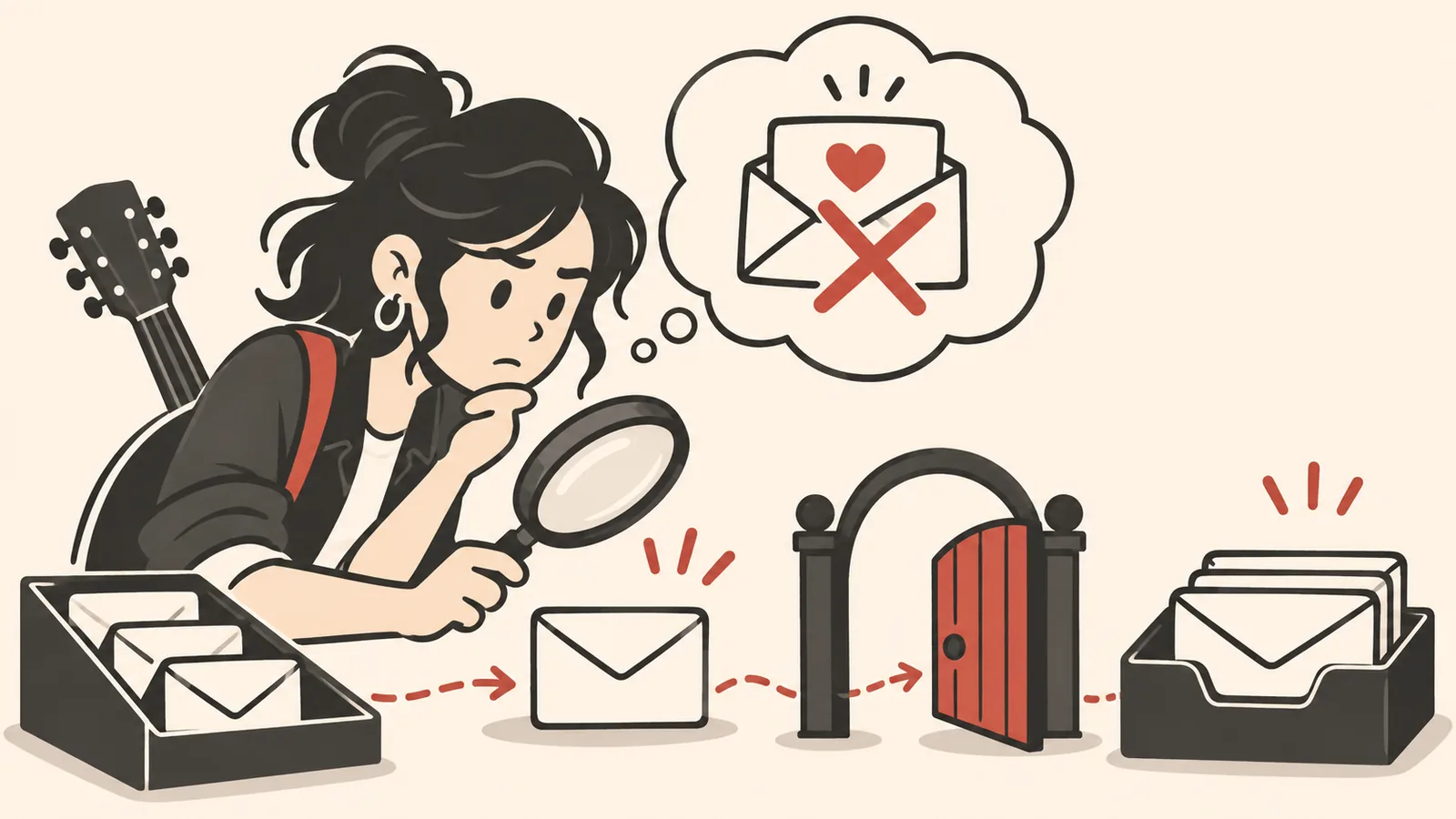
When fans say your welcome email never arrived, the problem is usually at one of five points: the form did not save the contact, the contact is in a state that does not trigger the email, the automation is not set up to include them, the email was not sent, or it was sent but was rejected, delayed or filtered by the receiving inbox. Check those points in order. On most platforms, "sent" means the platform recorded a sending attempt, as that platform defines it, and "delivered" usually means the receiving server accepted the message. Neither means it landed in the main inbox.
This is a troubleshooting guide. If you need help with what the welcome emails should say, see our guide to building an email welcome sequence for new music fans.
The delivery path
Think of the welcome email as moving through a chain. Each link can fail on its own.
- Form: the fan submits the signup form.
- Contact state: the platform creates or updates the contact, as subscribed, pending confirmation, unsubscribed or something else.
- Automation eligibility: the welcome automation decides whether this contact qualifies.
- Sending: the platform sends the email.
- Receiving: the fan's email provider accepts, delays, rejects or filters it.
Start at the top. There is no point investigating spam folders if the contact was never created.
1. Did the form save the contact?
- Submit the form yourself, on mobile, using a fresh address.
- Search for that address in your email platform.
- If it is not there, the issue is the form or its connection: a broken embed, a third-party form that is not syncing, a required field that silently fails, or a script blocked by a browser setting.
- If you changed landing page builders or forms recently, test every entry point, not just one.
Our mobile landing page testing guide covers how to test the page itself.
2. What state is the contact in?
Open the test contact and look at its status.
- Pending or unconfirmed: if you use double opt-in, a welcome flow that depends on subscription status may not run until they confirm. Exactly how pending contacts are treated depends on your platform and workflow. The missing email may actually be the confirmation email. Mailchimp's confirmation email troubleshooting page covers this case and recommends waiting a few hours before deeper investigation, because delivery times vary.
- Unsubscribed, cleaned or blocked: a returning fan who previously left may not be re-added the way you expect.
- Subscribed: move on to the automation.
If you are still choosing between methods, see single vs double opt-in for an artist email list.
3. Does the automation include this contact?
- Is the welcome automation turned on, not paused or in draft?
- Does it trigger on the way this contact joined? Some automations only trigger on signups through a particular form, or on contacts who match a tag or segment.
- Was the contact added by import or by an integration? Depending on the platform, imported or synced contacts may not trigger a welcome automation.
- Is there a delay set before the first email?
- Did you edit the automation recently in a way that affected who qualifies?
4. Was the email actually sent?
Check the automation's activity or the contact's activity log. If there is no send record, look first at eligibility, a paused automation or an account issue, but also allow for logging or processing delays on the platform before concluding nothing was sent. If there is a send record, move to the receiving side.
5. What happened at the receiving end?
Once the platform sends the email, the receiving provider decides what to do with it. Mailchimp's page on subscribers not receiving campaigns lists common causes: spam filters, blocked senders, provider throttling that can delay delivery to some webmail accounts by about a day, and corporate or university filters.
Look for:
- A bounce: the platform reports the address as rejected. Check for typos and whether the address exists.
- No bounce, but the fan cannot find it: ask them to search all folders, including spam and any tabs, for your sender name.
- Delayed: if it arrives hours later, throttling or filtering may be involved.
Sender authentication and Gmail
Google's email sender guidelines set requirements for anyone sending to personal Gmail accounts, and stricter requirements for bulk senders, which Google defines by volume sent to personal Gmail accounts. For all senders, the list includes setting up SPF or DKIM authentication, valid forward and reverse DNS for sending domains or IPs, a TLS connection, and keeping reported spam rates low. For bulk senders, it adds SPF and DKIM, DMARC, alignment, and one-click unsubscribe for marketing messages. Google's sender guidelines FAQ gives the current bulk sender definition, based on messages to personal Gmail accounts within a day, explains that messages from the same primary domain count together toward it, and that senders who fail the requirements may see messages rejected or sent to spam.
Mailchimp's confirmation email page also recommends authenticating your domain and not using a free webmail address as your From address. The exact records depend on your platform and your domain host, so follow their own instructions rather than copying records from an article. Authentication helps receiving providers trust your email. It does not guarantee inbox placement.
Diagnostic checklist
Work through this in order and write down where it failed.
- Fresh test signup on mobile appears in the platform
- Test contact status is the one you expect
- Confirmation email received, if using double opt-in
- Welcome automation is active
- Automation trigger matches how the contact joined
- Activity log shows the welcome email was sent
- No bounce recorded for the address
- Email found in inbox, spam or another folder at Gmail and at least one other provider
- Sending domain authentication set up as your platform instructs
- From address uses your own domain
Hypothetical example
An artist launches a signup campaign and three fans message to say the free download never arrived. This is an illustrative scenario.
The artist tests and finds the contacts are in the platform, so the form works. All three are marked pending. The artist uses double opt-in, so the real missing email is the confirmation. Two find it in their spam folder. The third mistyped their address. The fix is not to rewrite the welcome email, it is to tell fans on the thank-you screen to look for a confirmation email from the artist's name, and to review the From address and domain authentication.
Limitations
Email platforms behave differently, and receiving providers do not publish every filtering rule. This article cannot tell you why one specific message was filtered, and no change guarantees inbox placement. For account-specific problems, use your platform's own support.
FAQ
The platform says delivered. Why can't the fan see it?
On most platforms, delivered means the receiving server accepted the message. It may still be filed in spam, another folder or tab, or held by a filter.
Should I resend to everyone who did not open?
Not by default. Opens are not reliable proof of who read an email, and repeated sends to people who did not engage can work against you.
Next step
If fans are not getting your emails, the campaign feeding the list loses its value. For help connecting signup campaigns to a working email flow, see our services or contact Shuffle.
Want this run on your release?
We take on a limited number of artists and labels, and we read every application ourselves.
Apply to Work With Us